How to Add Books
Quick Navigation
BookNPC supports multiple eBook formats including EPUB, MOBI, AZW, FB2, and TXT. There are three ways to add books to your library:
1. Using the Explore Tab
BookNPC includes a built-in browser that allows you to download eBooks directly from websites that offer free or purchased eBooks in supported formats.
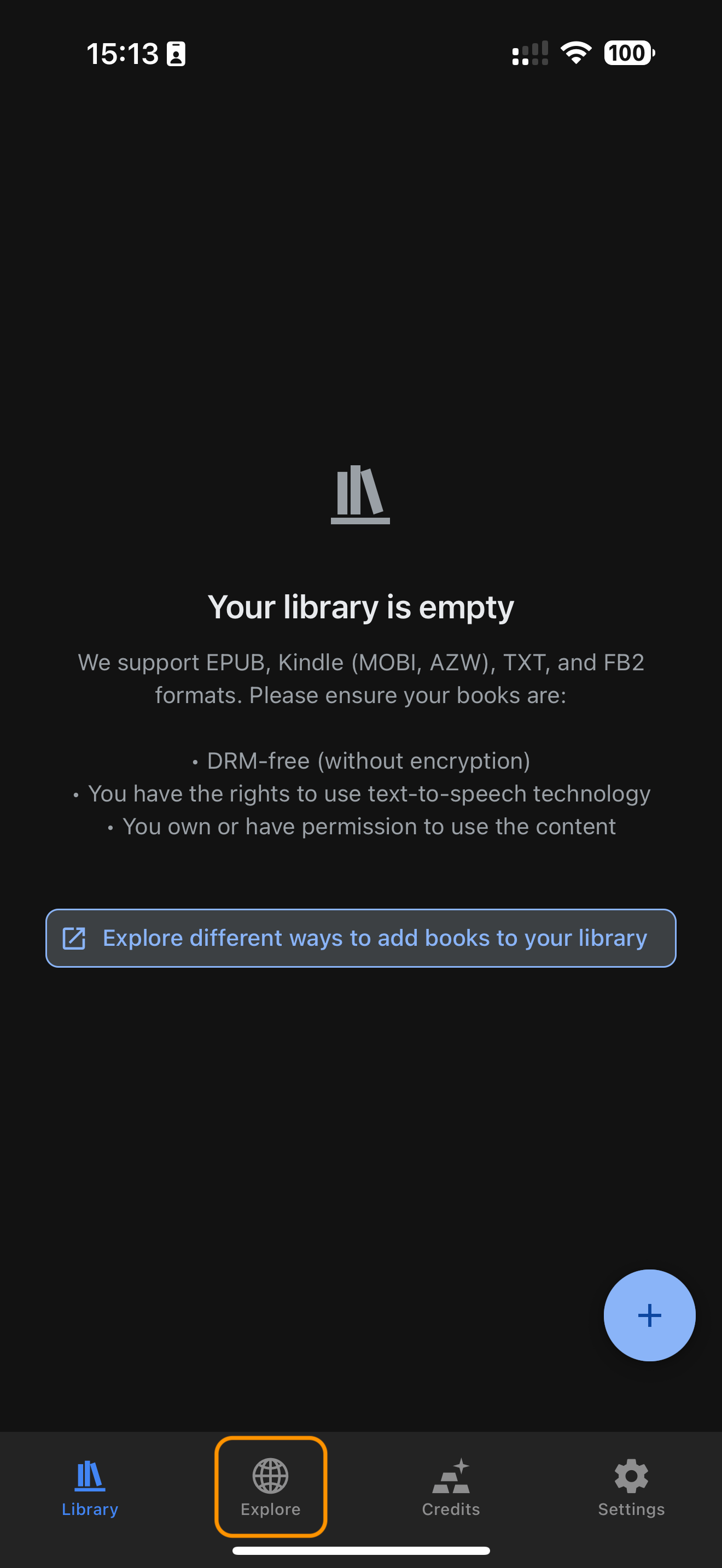
Step 1: Access the In-App Browser
Tap the Explore tab at the bottom of the screen to open the in-app browser.
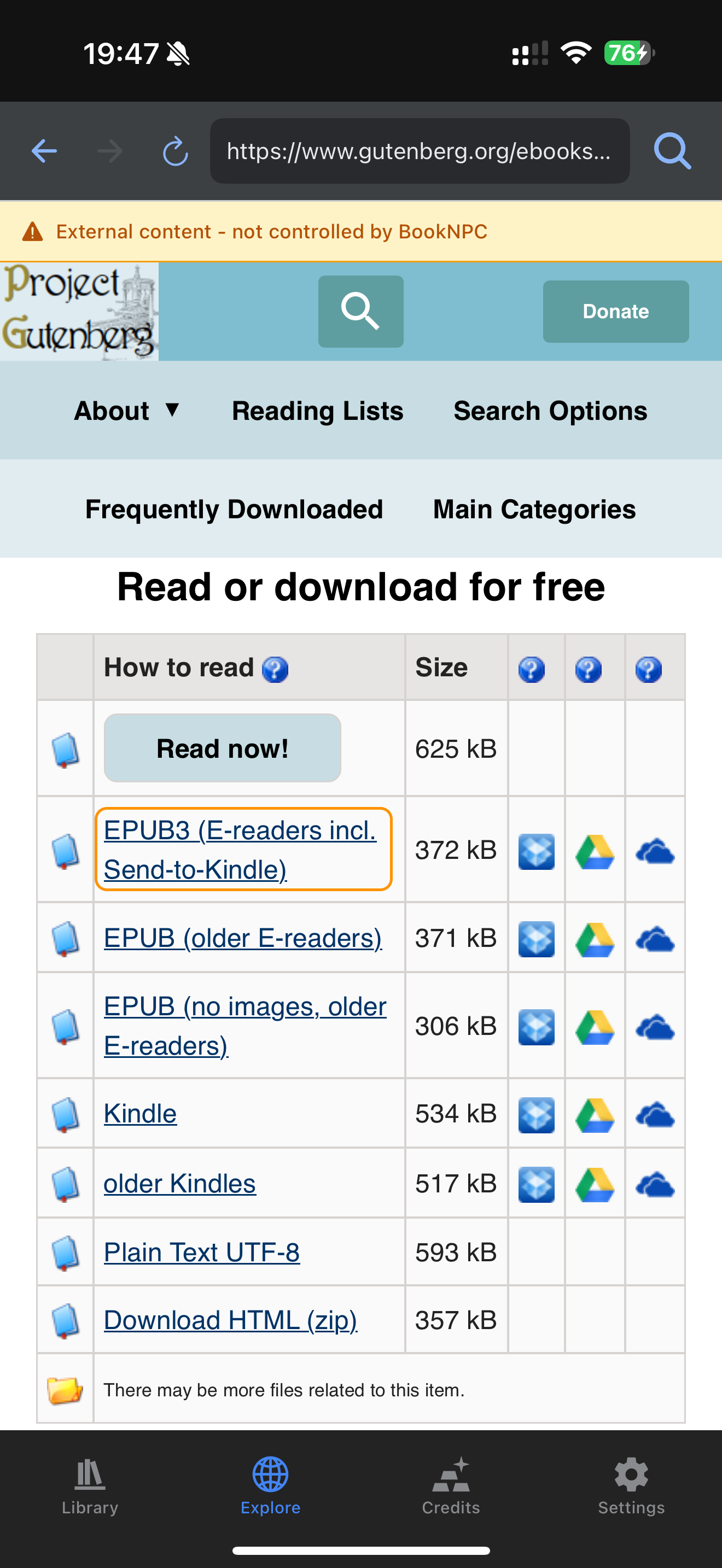
Step 2: Find and Download an eBook
Navigate to any website that offers eBooks in supported formats (EPUB, MOBI, AZW, FB2, TXT). When you find a book you want, tap the download link for any of these formats.
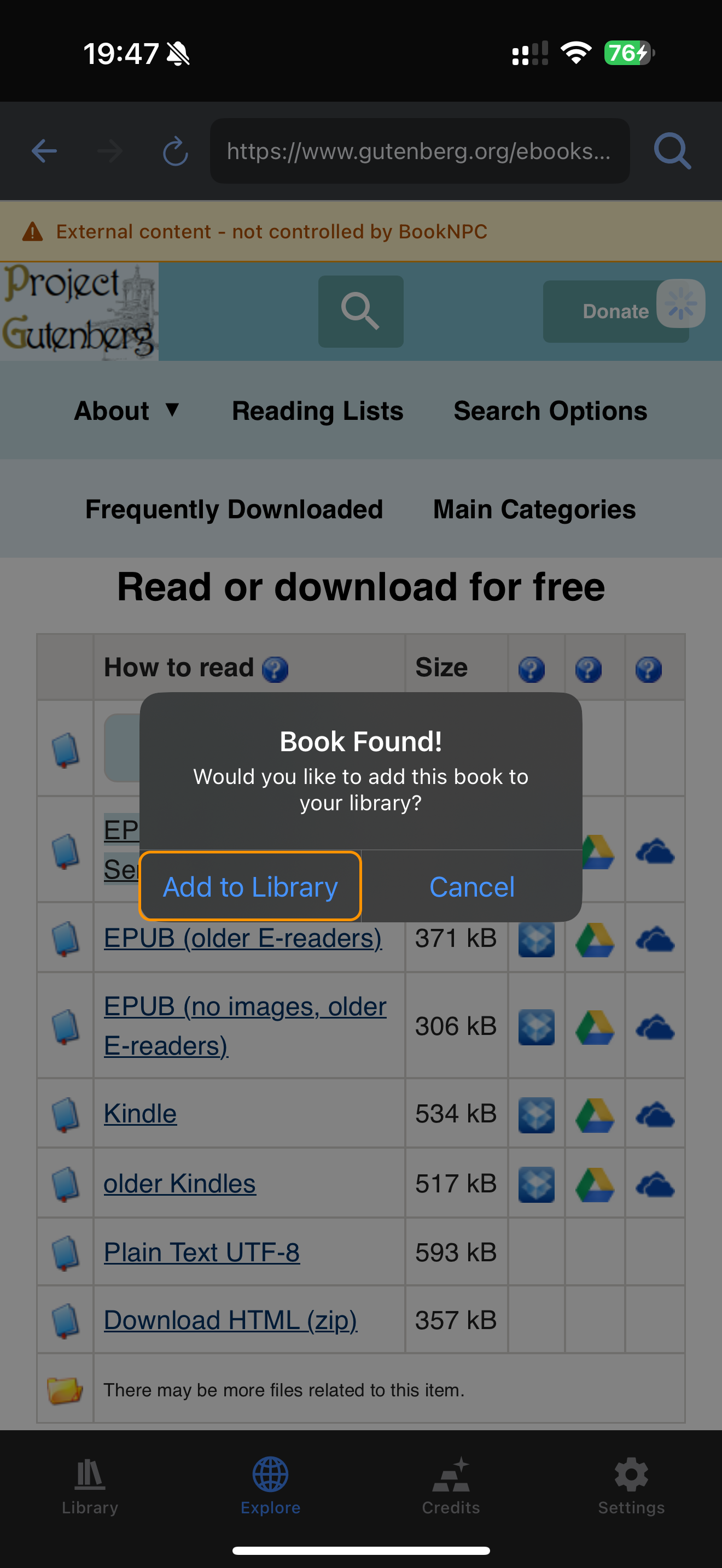
Step 3: Confirm Adding the Book
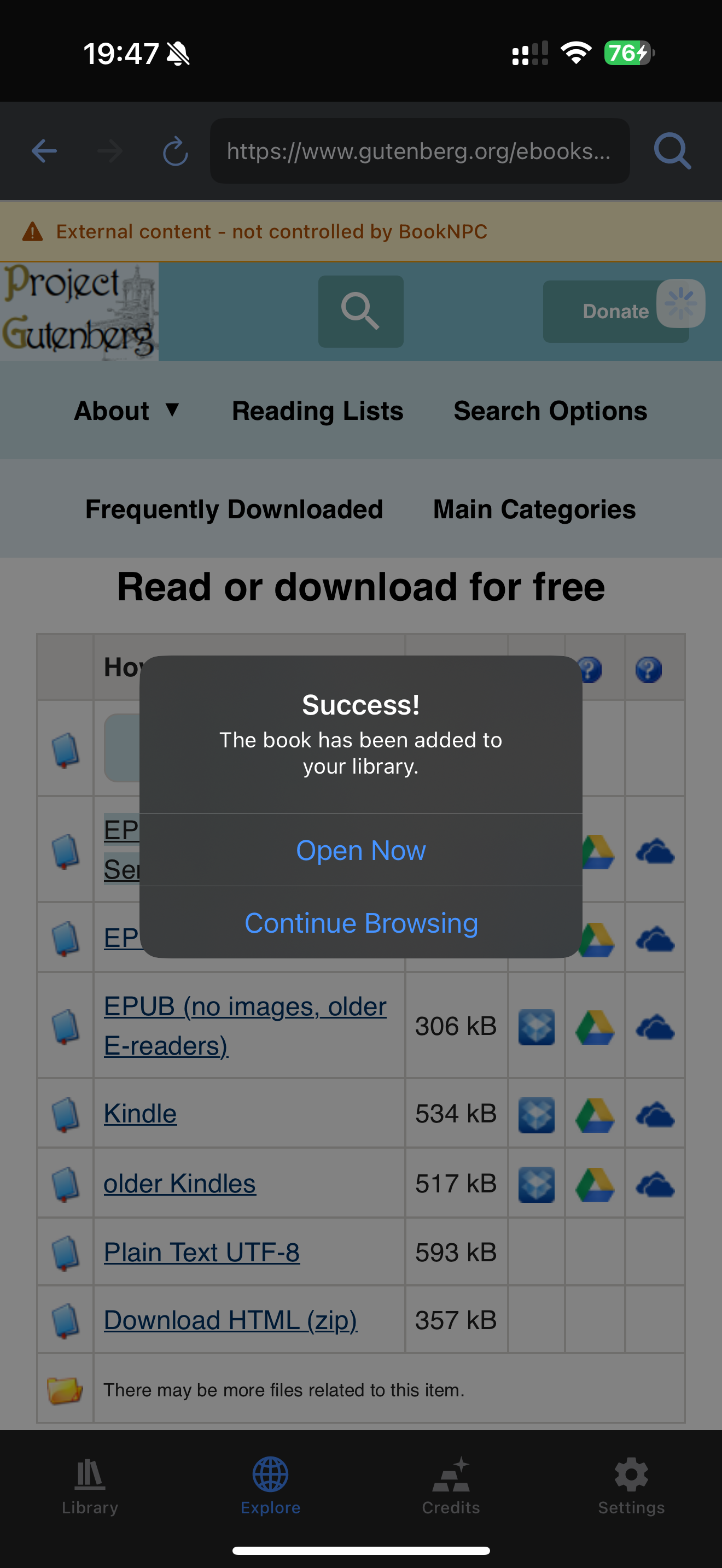
When BookNPC detects a supported eBook file, a confirmation dialog will appear. Tap Add to Library to add the book.
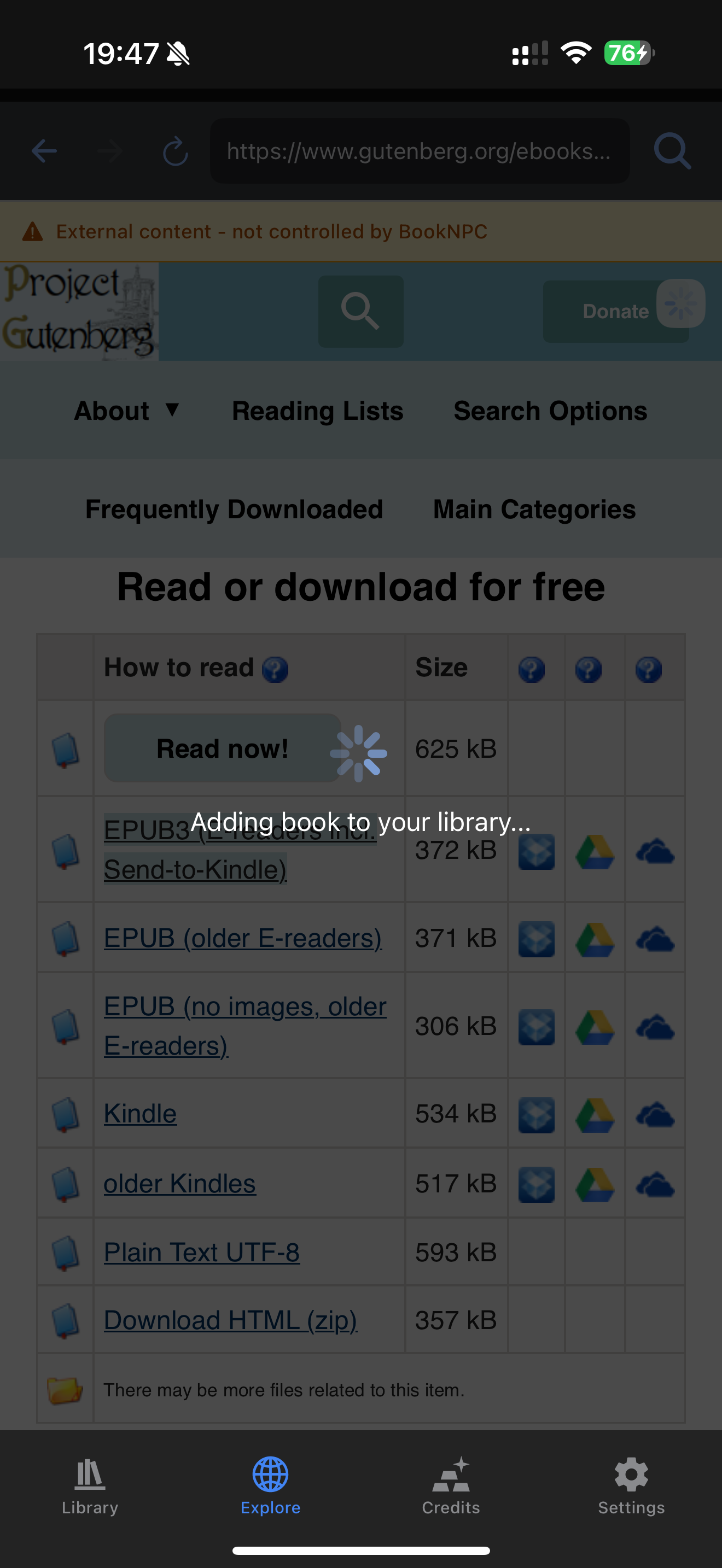
Step 4: Wait for the Book to Download
BookNPC will download and process the book. This may take a few moments depending on the size of the book and your internet connection.
Step 5: Access Your New Book
Once the book is added successfully, you can either:
- Tap Open Now to start reading immediately
- Tap Continue Browsing to find more books
Tips:
- You can paste eBook download links directly into the browser's URL bar
- Or type any website address in the URL bar to visit sites that offer eBooks
- Or enter keywords in the URL bar to search Google for books
- If a download doesn't start automatically, look for direct download links in supported formats
2. From Files App
If you've already downloaded eBook files to your device, you can add them directly from your device's file system.
Step 1: Access the Add Book Option
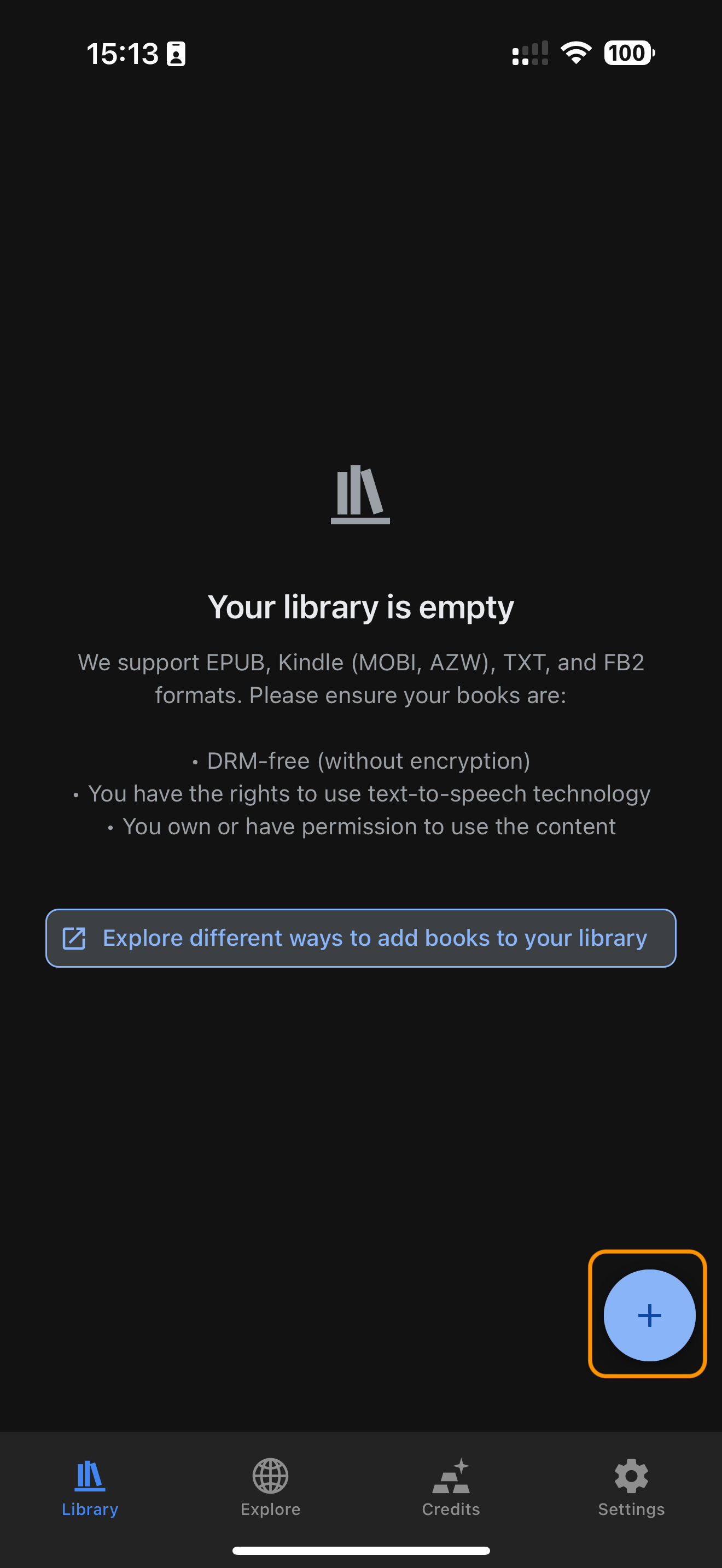
From your library screen, tap the + button (blue circle with plus sign) at the bottom right corner of the screen.
Step 2: Navigate to Your eBook File
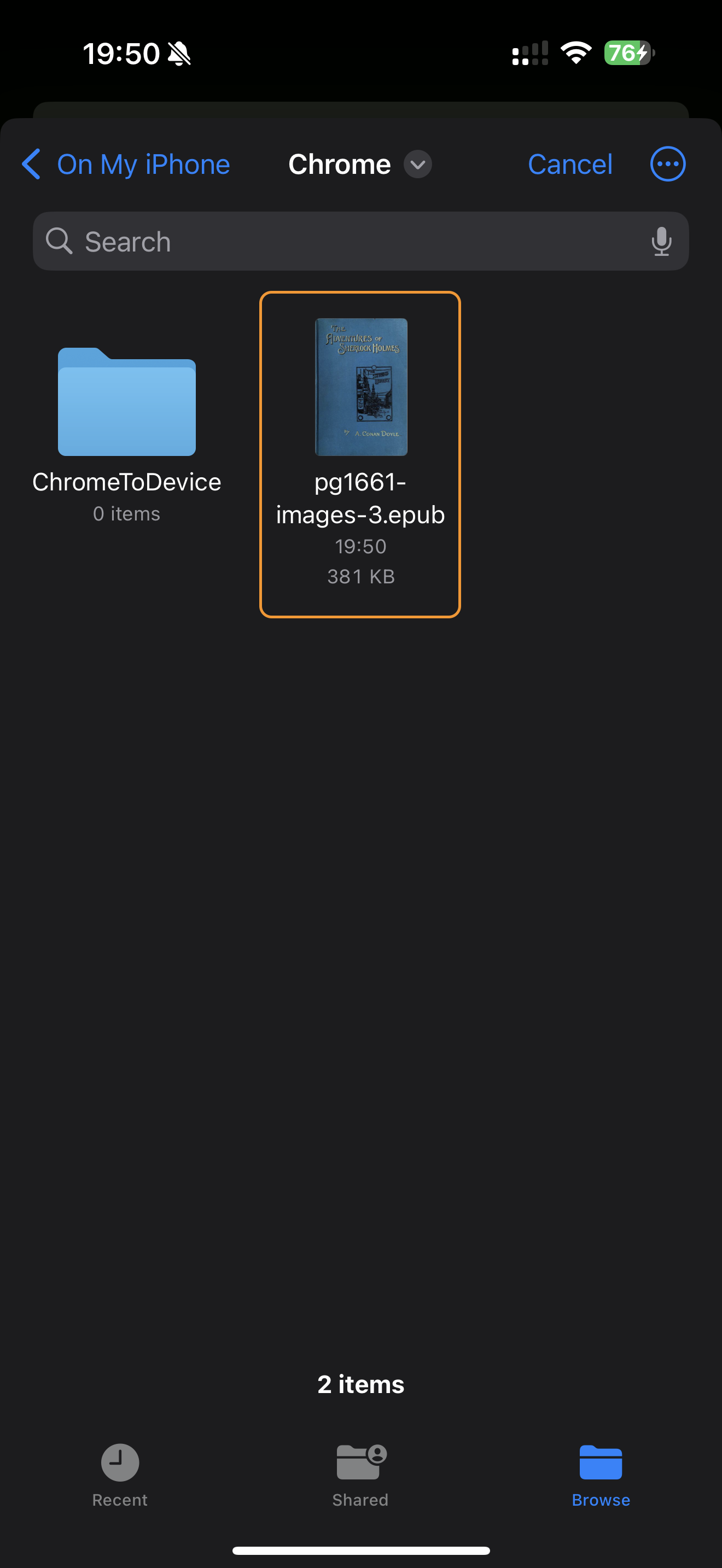
Your device's file system will open. Navigate to the location where your eBook file is stored. Common locations include:
- Downloads folder
- Documents folder
- iCloud Drive/Files
- On My iPhone/iPad storage
Tap on the eBook file you want to add to your library. BookNPC supports files with .epub, .mobi, .azw, .azw3, .fb2, and .txt extensions.
Tips:
- BookNPC will only display files with supported extensions (.epub, .mobi, .azw, .azw3, .fb2, .txt)
- You can use the search function in the Files app to find eBook files if you're not sure where they are
- If you downloaded books using a different browser, check that browser's download folder
3. Share from Other Apps
You can add books to BookNPC directly from other apps using the iOS share feature. This works with any app that can download or open eBook files in supported formats, such as browsers, email clients, or cloud storage apps.
Step 1: Download or Open an eBook File in Another App
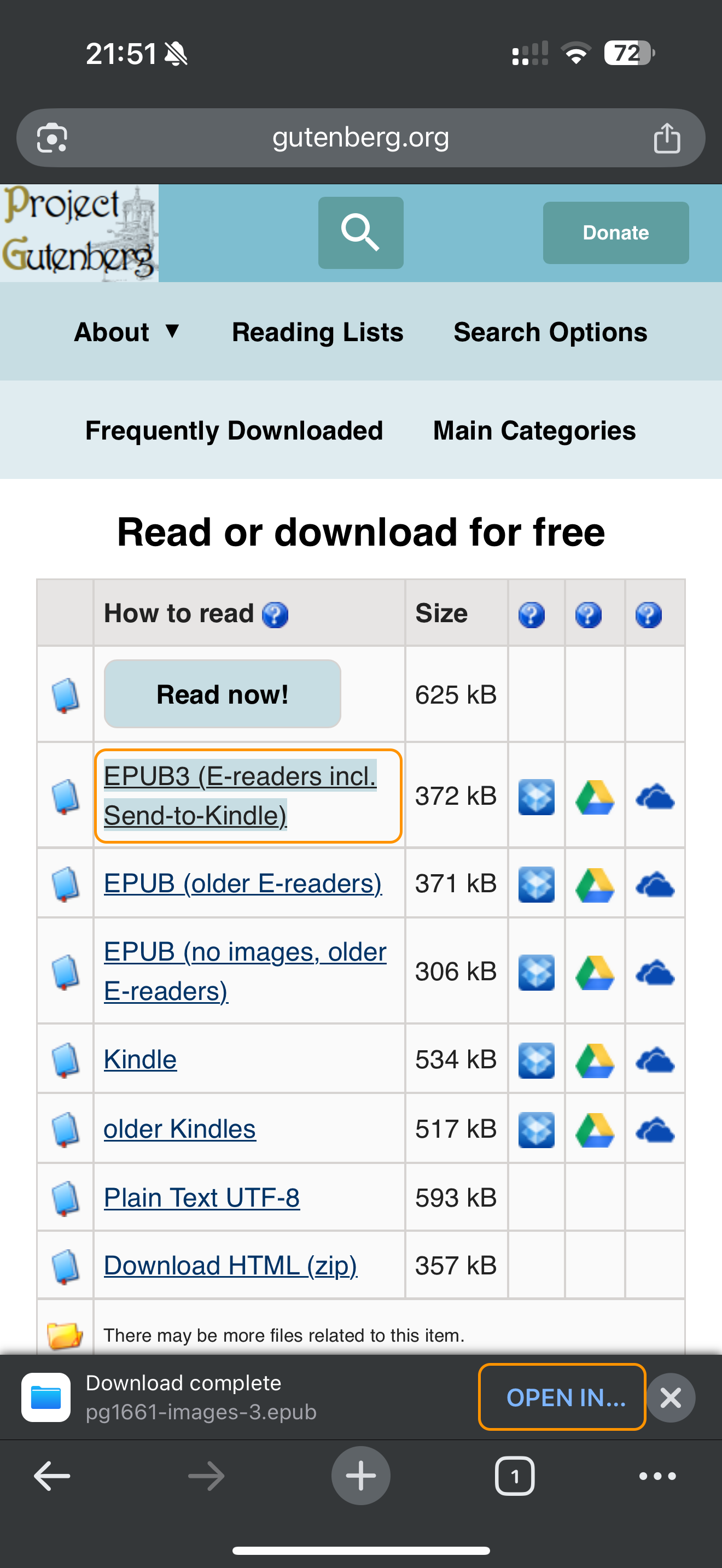
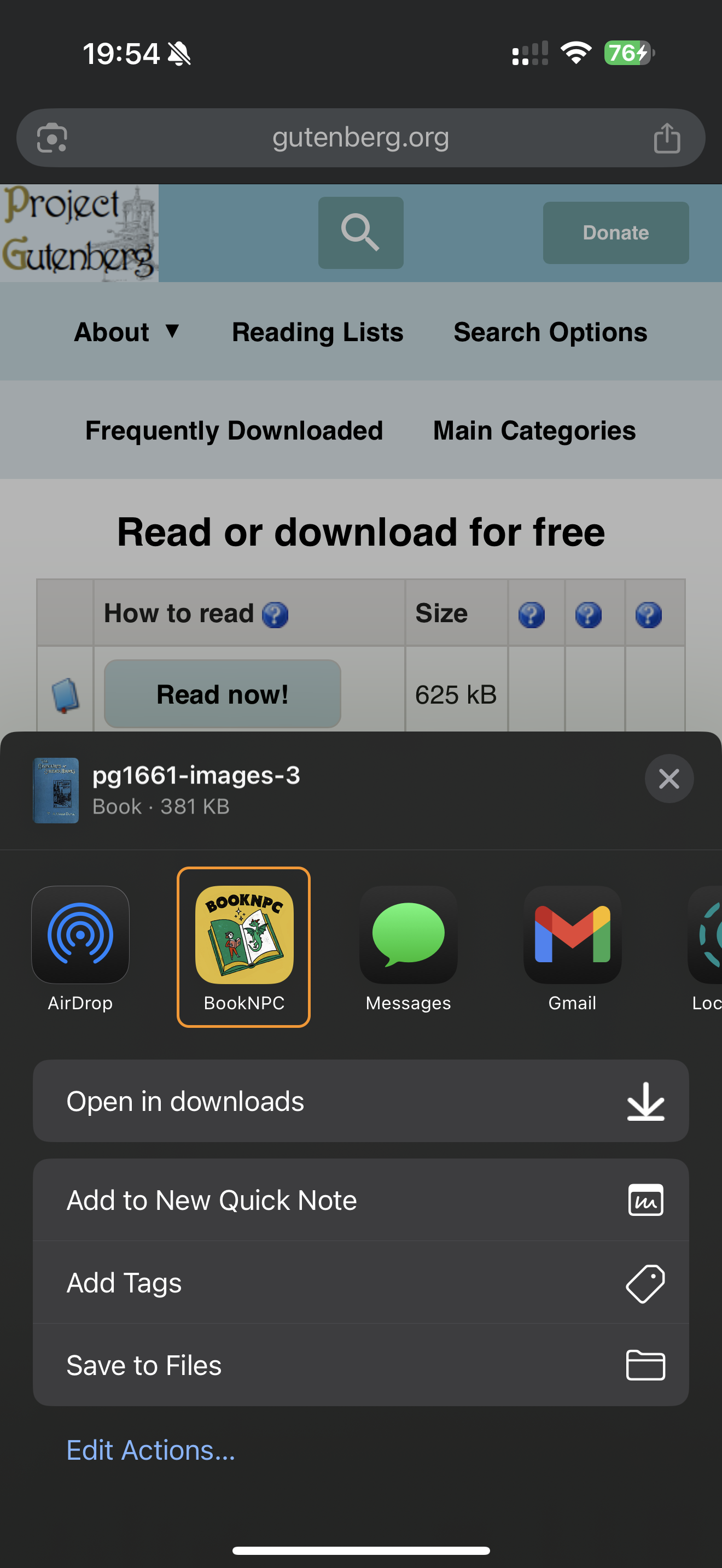
For example, when downloading an eBook file in Chrome, you'll see a "Download complete" notification with an "OPEN IN..." button. Tap this button to access sharing options.
Step 2: Share to BookNPC
In the share menu, look for the BookNPC icon. If you can find it, simply tap it to add the book to your library.
Step 3: If BookNPC Isn't Visible
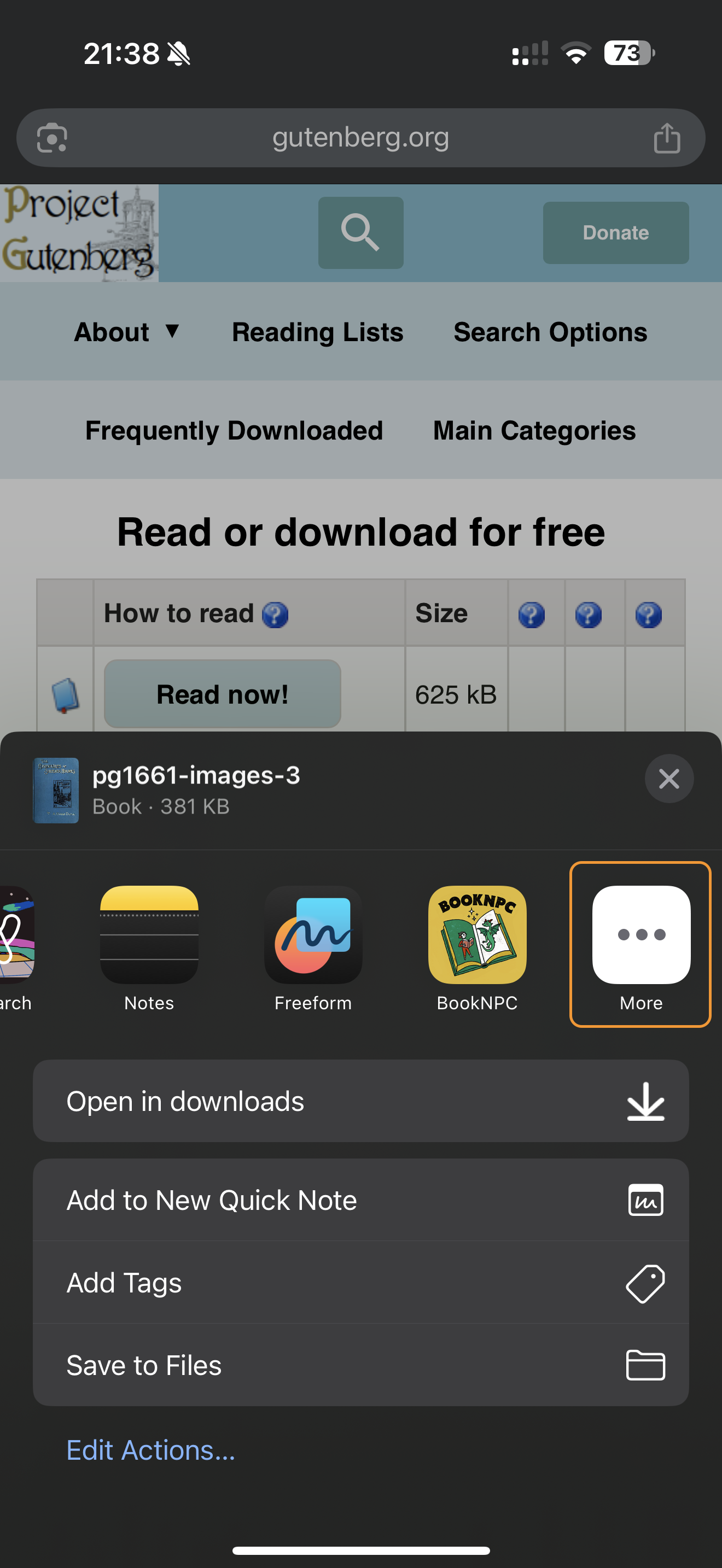
If you don't see the BookNPC icon in the share menu, tap the "More" button (usually at the end of the app icons or with three dots).
Step 4: Enable BookNPC in Share Menu
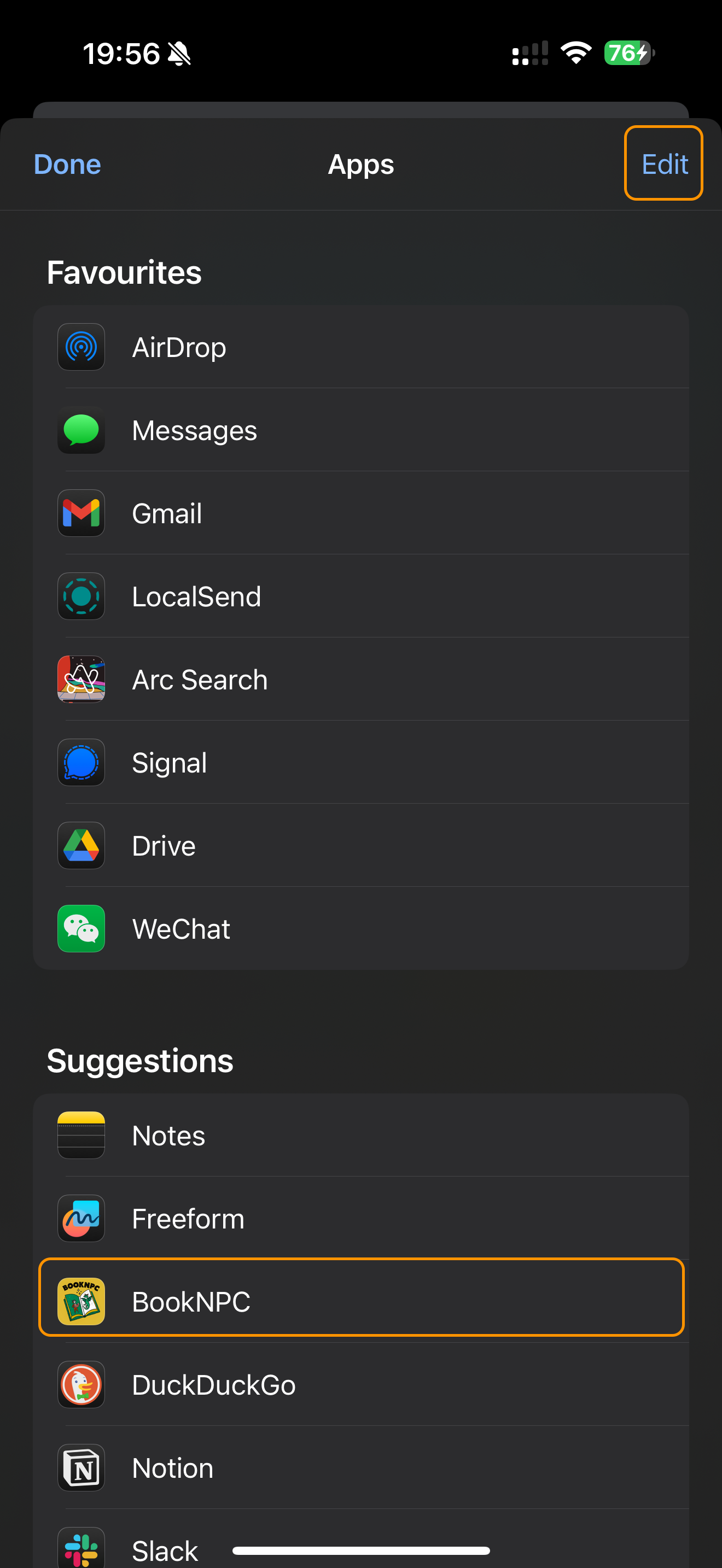
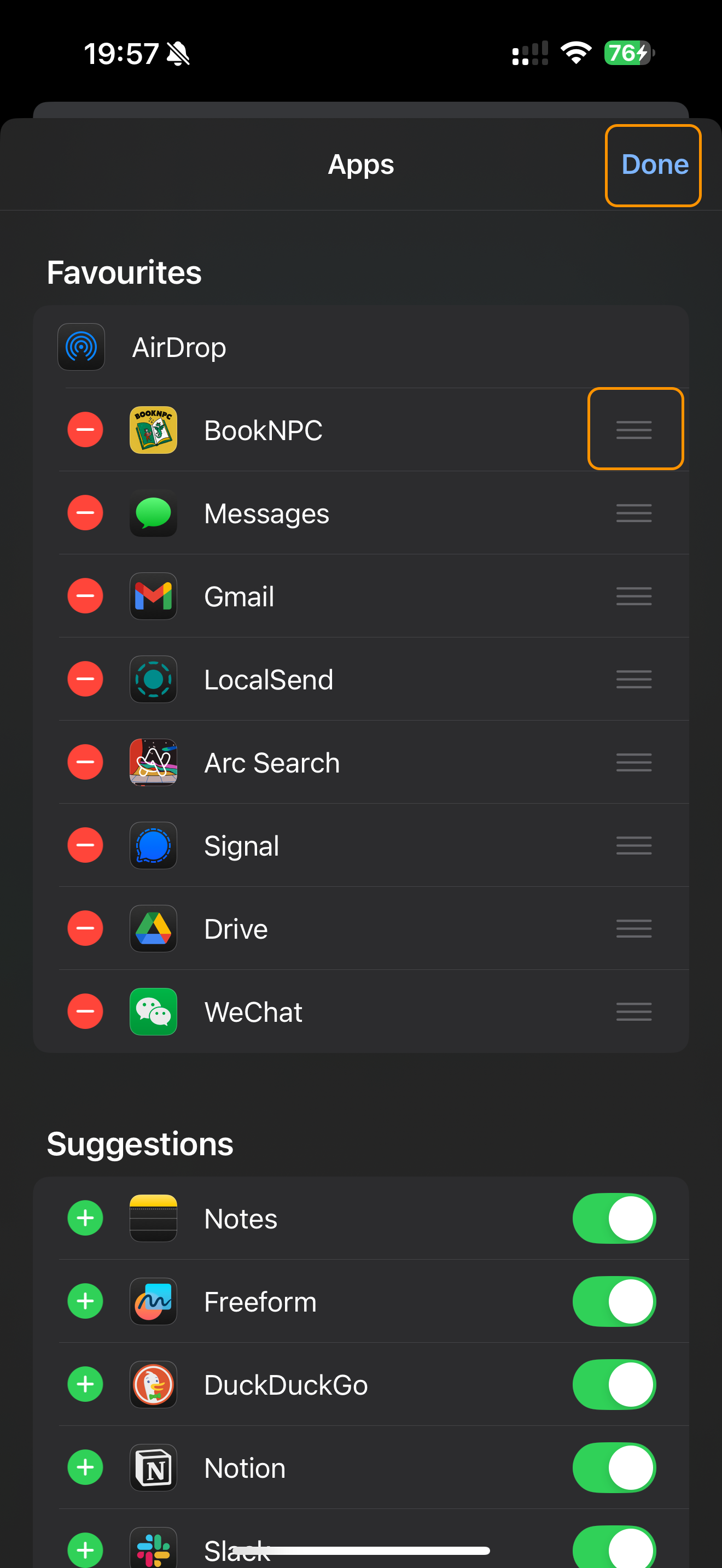
In the list of apps, find BookNPC and tap it to share your eBook file. For easier access in the future, tap "Edit" to customize your share menu.
Step 5: Add BookNPC to Favorites
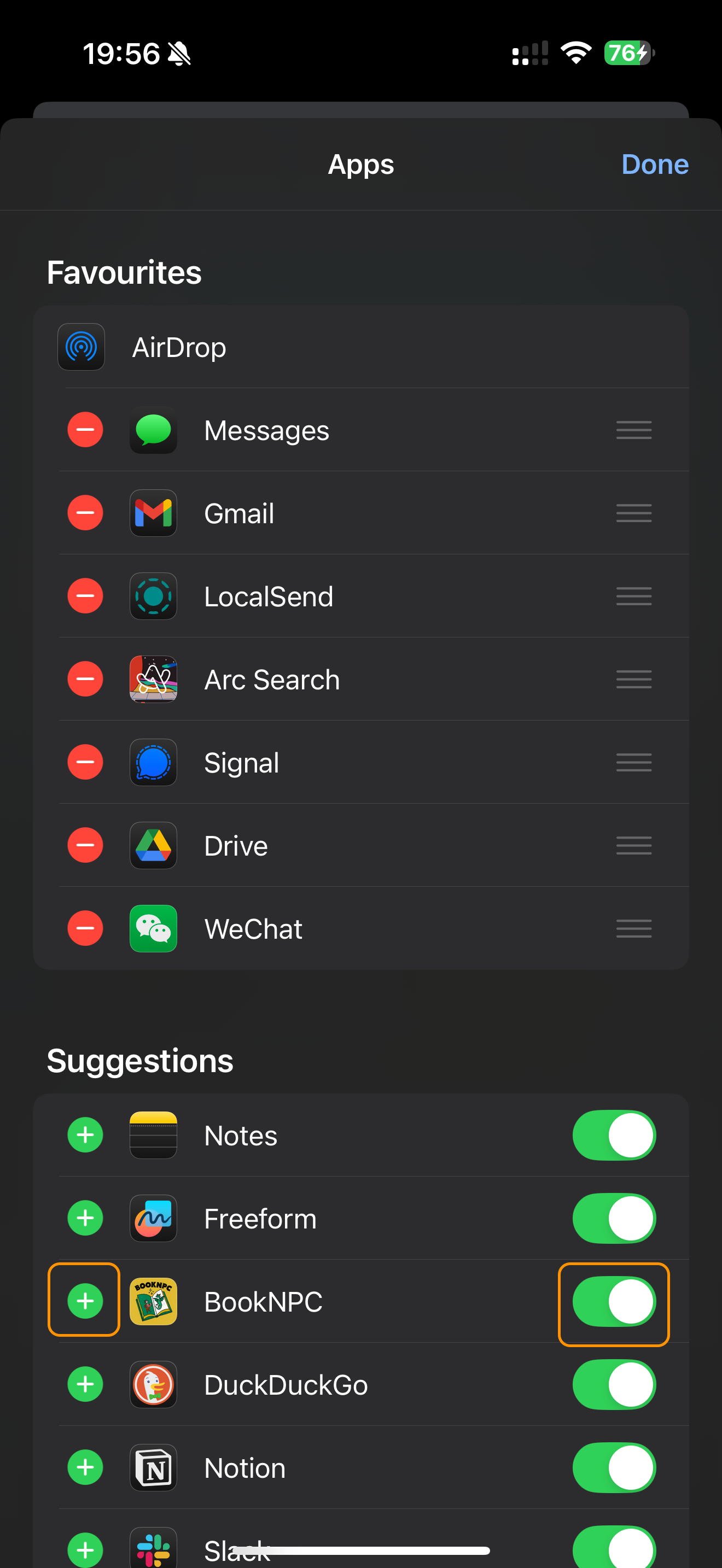
When in edit mode:
- Make sure the toggle next to BookNPC is turned on (green)
- Tap the green plus icon (+) to add BookNPC to your Favorites list
Step 6: Rearrange and Save Your Changes
Use the drag handles (three lines) to move BookNPC higher in your Favorites list for easier access. When finished, tap "Done" to save your changes.
Tips:
- Adding BookNPC to your Favorites in the share menu makes it easier to quickly add books in the future
- This method works with any app that can handle supported eBook formats (EPUB, MOBI, AZW, FB2, TXT), including Mail, Files, Safari, Chrome, etc.
- If the share option doesn't appear, try downloading the file first, then locate it in Files app and share from there